
HylaFSP – Windows and Mac OS Client for HylaFAX
Desktop faxing made easy!
HylaFSP will increase productivity, save resources, and reduce faxing errors inherent of typical fax machines. Licensing is available in workstation, terminal server, or network-wide licensing for both HylaFAX Enterprise and HylaFAX Open Source.
*HylaFAX Enterprise comes standard with 50-workstation licenses.

Features
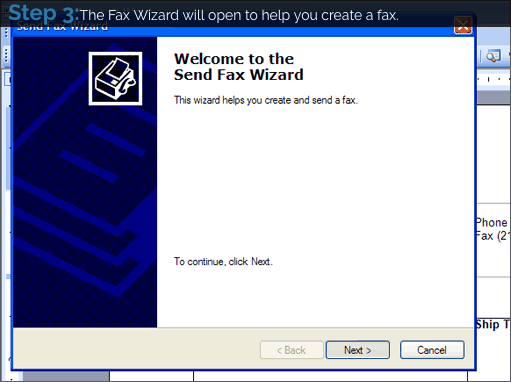
- Seamless integration with Microsoft’s easy-to-use fax wizard (Windows only)
- Fax from any application you can print from
- Perfect for non-technical users
- Integrates with Windows and Outlook Address Books
- Integrates with MacOS Address Book
- Send to multiple recipients or groups
- Design and use Microsoft cover pages (Windows only)
- Terminal Services Compatabilty
- Available in workstation, terminal server, or network-wide license packs.
- Windows XP, Vista Business/Ultimate, Windows 7 & 8.1 workstations. Windows 2003/2008 Server. 32- and 64-bit compatible.* Windows 7 and 2008 server support single user profiles only (notifications are sent to one user only).
- MacOS 10.7+
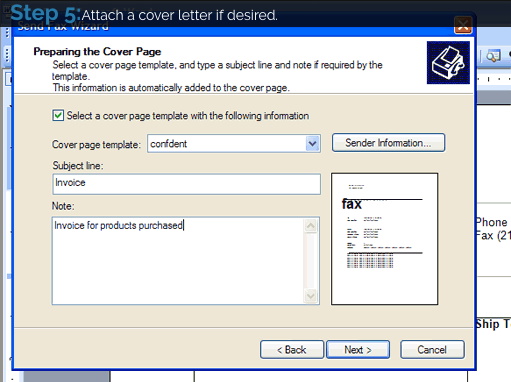
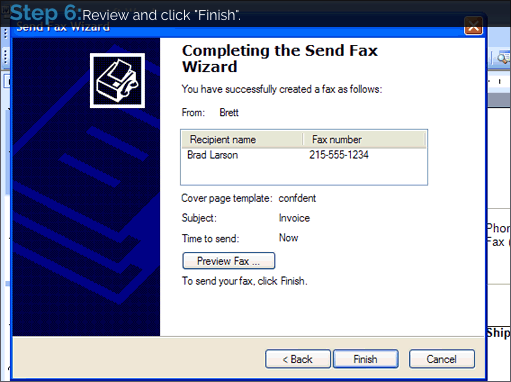
HylaFSP Walk through
HylaFSP Download
A 30-day fully-functional evaluation copy of HylaFSP is available by following the link below. After your evaluation period has expired, you may purchase a serial number to unlock your copy at the iFAX online store.
Important Configuration Notes:
Administrative privileges are required to install HylaFSP. After your installation is complete the HylaFSP control panel will open automatically. You must enter in your HylaFAX server information before sending a fax. The configuration will require your HylaFAX server IP address or hostname and a username/password if required by your HylaFAX server.
Sending a fax
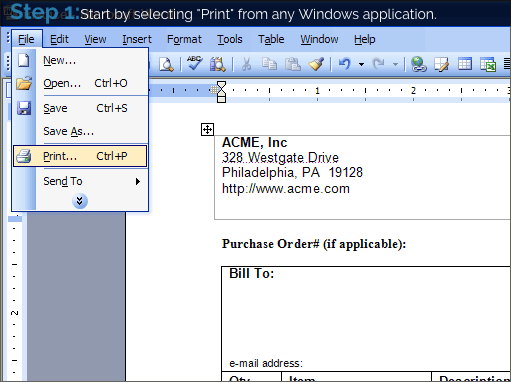
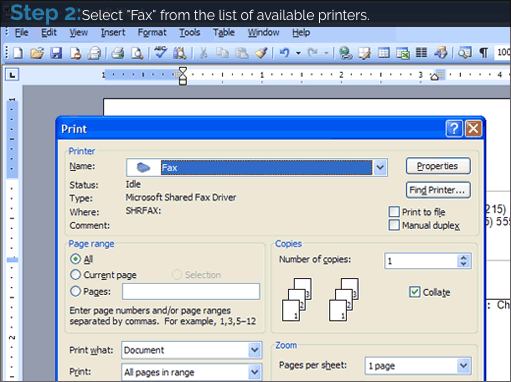
When you’re ready to send your first fax, simply Print from any Windows application. You should select the printer named ‘Fax’. The first time you send a fax, Windows will require you to enter in some basic information to identify your sent faxes.
Questions
If you have a question about HylaFSP please first check our online HylaFSP FAQ. If you still require assistance, please contact:
hylafsp-support@ifax.com
HylaFSP FAQ
HylaFSP for Windows
What versions of Windows does HylaFSP Support?
HylaFSP has been split into Workstation and Server versions. A workstation license supports Windows XP, Vista Business & Ultimate, Windows 7 in 32-bit and 64-bit modes. The server license supports Windows 2000, 2003, and 2008 Server in 32-bit and 64-bit modes.
* Windows Vista Home Basic and Home Premium do not support fax services and are not compatible with HylaFSP.
* Windows 2008 Server is Single User mode only(notifications are sent to one user only).
What address books can I use in Windows?
HylaFSP integrates with your existing Windows address book. By default that is the Windows Address Book (WAB) which is used by Oulook Express. If you have installed Microsoft Outlook your system will use the Oulook Address Book (OAB) instead.
Can I fax using an Outlook distribution list?
Yes, HylaFSP supports faxing to Outlook contacts and distribution lists.
Can I use the Outlook Address Book with Windows 2000?
* When running Windows 2000 the fax wizard does not have access to the Outlook Address Book. The Windows Address Book (Outlook Express) is fully supported by HylaFSP and the Microsoft Fax Wizard. Please see the following Microsoft Knowledge base article for more information:
OL2002 Contacts Are Not Available in the Send Fax Wizard for Windows 2000 Fax
Although not supported by Microsoft it may be possible to configure Windows 2000 to use the Outlook Address Book. Please contact your iFAX Solutions representative for more information.
Can I send faxes directly from Outlook Email Application?
Yes. Please see: https://www.slipstick.com/addins/services/winxpfax.htm#better
Can I make my own cover pages in Windows?
Yes, since HylaFSP integrates with Microsoft’s Fax Service you are able to use its built-in cover page editor. All versions of Windows included the ability to create and manage cover pages.
Can I run HylaFSP in my Windows Terminal Server session?
Yes, HylaFSP supports Windows Terminal Services.
Can I do a fax merge from MS Office?
Yes, you can do a Fax Merge from Microsoft Outlook and Word. Please see the following Microsoft Knowledgebase article for detailed instructions:
HylaFSP for Mac OS
How do I install HylaFSP for MacOS?
Please download the latest version of HylaFSP for MacOS to your desktop: Downloads. Once downloaded, find the install file on your computer and double click the dmg file to start the installer. Follow the directions on your screen.
Where do I configure HylaFSP for MacOS?
Click on the Apple in the top left of your screen and then on System Preferences. The HylaFSP icon will be displayed on the bottom row and is represented by light blue and navy blue flags. Double click on this icon and follow the on screen instructions for configuration.
What versions of MacOS does HylaFSP Support?
HylaFSP supports MacOS 10.8 and 10.8 in 64-bit mode.
Can I fax using an MacOS Address book?
Yes, HylaFSP supports faxing from the contacts in MacOS Address Book.
Can I use a cover page?
Yes. You can use one of the built-in cover pages in MacOS. The options will be shown to you as you are guided through fax process in HylaFSP.
Technical Questions
How do I configure HylaFSP?
- IP address the HylaFAX host IP address
- Port the HylaFAX port (4559 by default)
- User Name user name for HylaFAX
- Password the HylaFAX users password. This field might not be required in a particular HylaFAX configuration, check with your HylaFAX administrator.
- Max Tries maximum number of times the HylaFAX will try to deliver your fax
- Max Dials maximum number of times the HylaFAX will dial the destination number
- Billing Code billing code for HylaFAX
- Priority the HylaFAX priority
- Taglines specify whether to be generated by Windows Fax Service or by HylaFAX (the HylaFAX option is recommended). Only one check box must be selected.
- E-mail address an e-mail address to send fax delivery notifications (this field is compulsory)
- Notification options radio buttons to select conditions for sending notifications, – on failure only; on delivery and / or on failure; on retries, delivery and / or failure.
- Debug select this check box when you need to troubleshoot a problem with HylaFSP. A HylaFSP log file will be created in your C: directory.
How do I create or edit cover pages in Windows?
Editing cover pages in Windows: Open the \Documents and Settings\All Users\Documents\My Faxes\Common Cover Pages folder. Double-click any cover page to open it in the Fax Cover Page Editor. Creating new cover pages in Windows: Make a copy of an existing cover page, open and edit it as above. OR Open any existing cover page, then choose File | New from the Fax Cover Page Editor’s menu.
How can I use a HylaFSP username that contains a space?
HylaFSP and HylaFAX are able to accept a username that contains a space, such as John Doe. Versions prior to 2.0.7 required a workaround. In order for the username to be accepted properly you must enclose the full name within quotes when entering it in the HylaFSP control panel. If you enter John Doe (no quotes) within the control panel you will receive an error, however if you enter “John Doe” (with quotes) the fax will send correctly. The recommended solution to users experiencing this problem is to upgrade to HylaFSP 2.0.7 or later.
Why does my HylaFAX server reject the fax?
The two most common reasons are:
- Your HylaFSP control panel is not properly configured. Please check that the server address, port and username/password (if required) are correct.
- The HylaFAX server is not set up to accept incoming client requests.
My fax does not appear in the Microsoft Fax Queue and is not sent.
This issue can occur if the system drive is formatted using NTFS and the “Users” group does not have the proper permissions.
Parameter is incorrect error while registering.
Internet Explorer 7 introduced a problem with HylaFSP’s online registration. This issue was resolved in version 3.0.5 of HylaFSP. All users are recommended to upgrade to the latest version of HylaFSP in order to fix this problem.
Fail to Find User error message appears.
The error message you are receiving indicates that user under which Microsoft Fax Services is running does not have the appropriate privileges. The account, by default NetworkService, will require access to FAX_JOB_QUERY. You can view the access rights for the fax component by following these steps:
- Start Menu –> Control Panels –> Administrative Tools –> Computer Management.
- Expand “Services and Applications”
- Select “Fax”
- Right click on “Fax” and select properties
- Choose the Security tab
- Click the Advanced button and select the “SERVICE” group, then choose edit. You will see a list of the possible permissions. The one needed is “view fax jobs.” However, for testing can you give “SERVICE” access to all the permissions.
- Please then open the HylaFSP control panel and go to the server tab.
- Enter in a path to a log file to generate. (for example: c:\hylafsp.log)
- Restart fax services and try to send a fax
If it fails then refer to the log file for additional information.
Only administrators are able to fax, why?
The default permissions of Windows 2000 only permit faxing by Administrators. You can allow the Users group to fax by changing the permissions on the fax directory.
Parameter is incorrect error while registering: Number of fulfillments exceeded.
HylaFSP is licensed on a per-workstation basis; when you purchase a copy online it is for one workstation only. If you are changing PCs, please contact licensing@ifax.com for more information. Otherwise we ask that you purchase additional licenses as needed.
Parameter is incorrect error while registering: Internet Explorer 7.
Internet Explorer 7 introduced a problem with HylaFSP’s online registration. This issue was resolved in version 3.0.5 of HylaFSP. All users are recommended to upgrade to the latest version of HylaFSP in order to fix this problem.
What versions of HylaFAX does HylaFSP work with?
HylaFSP will work with all modern versions of HylaFAX Open Source and Enterprise Editions.
Why aren't my dialing rules being used?
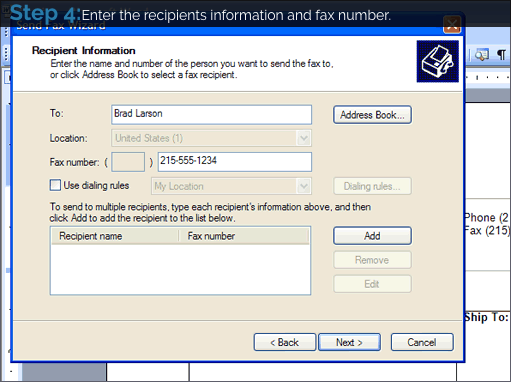
Even though you may check off ‘Use dialing rules’ in the Fax Wizard they may not be used. According to Microsoft, the dialing rules are only invoked if a phone number is in the following canonical format: +1 (215) 825-8700. Instead of using MS dialing rules you can always 1) Enter the fax number exactly as you want it dialed, or 2) Modify the dialstring manipulation on the HylaFAX server
Faxing with computers tagline does not work.
Some old versions of HylaFAX do not allow the sender to specify a tagline. In the HylaFSP control panel turn on Debug logging and attempt to send a fax. A logfile will be written in c:\Windows\System32\HylaFSP_[version].log. If you find an entry in this logfile similar to the following you have encountered this problem. SendFTPCommand JPARM USETAGLINE YES SendFTPCommand reply: 503 Permission denied: no write access to job parameter USETAGLINE. The recommended solution for this issue is to upgrade your HylaFAX server to the most recent version. If that is not possible you will be able to send faxes by changing your tagline settings in the HylaFSP control panel to use the server’s tagline.
My fax fails with an exit status 9 error from HylaFAX.
This error may occur when using HylaFSP to connect to an older version of HylaFAX. The recommended solution is to upgrade your HylaFAX server to version 4.2.0 or later. For more information and a possible workaround see below: HylaFSP generates fax-optimised 2D-MMR tiff files for maximum compression. HylaFAX may need to convert the TIFF to MR or MH format if your modems (or the receiving fax machines) do not support 2DMMR. The exit status 9 error you see during the conversion process is due to a known bug in libtiff that can occur when trying to carry out this conversion. You can either downgrade to libtiff-3.5.5, upgrade to libtiff-3.6.x (nor presently recommended because of MMR problems with libtiff), or apply the following patch to your current HylaFAX version: https://bugs.hylafax.org/bugzilla/show_bug.cgi?id=341 By far the best solution though is to upgrade to the latest release of HylaFAX which includes this patch already.
My fax appears completely blank on the receiving side.
Libtiff version 3.6.1 on RHEL4/CentOS4 has been known to cause this because of a problem in the ‘tiffcp’ utility. The recommended solution is to upgrade libtiff, and that can be done by following the procedure below: – Download the new libtiff Source RPM (.src.rpm) for your distribution (ie: from RHEL5/CentOS5) – Build the new RPM package using “rpmbuild –rebuild” and the libtiff .src.rpm – Upgrade libtiff by running “rpm -Uvh” with your newly built libtiff RPM Keep in mind that you’re upgrading a system library and if other software on the server depends on the older version of libtiff, you may experience incompatibility problems.
I upgraded my HylaFAX server and now cant send a fax.
After upgrading your HylaFAX server you can no longer send faxes via HylaFSP. Looking in the debug log shows that the password is not being accepted. The issues stems from a change that was made to HylaFAX as of version 4.2.1. Due to security concerns the format of hosts.hfaxd has changed somewhat. For example, in order to specify a range of IPs you should now use the following notation: .*@10\.0\.10\.* This example would allow passwordless based access from the 10.0.10.* class c subnet. More information on the change can be found in the hosts.hfaxd man page.
Can I send faxes programmatically?
Yes, you can submit documents from your application through the Microsoft Fax Wizard and into HylaFSP. Here is a sample VB script to programmatically send faxes: Sub CheckError(strDetails) Dim strErr If Err.Number <> 0 then strErr = strDetails & ” : Exception ” & Err.Description & ” err.Number=0x” & Hex(Err.Number) WScript.Echo strErr WScript.Quit(Err.Number) End If End Sub ON ERROR RESUME NEXT ‘For Windows XP Set FaxServer = WScript.CreateObject(“FAXCOMEX.FaxServer”) CheckError(“WScript.CreateObject(FAXCOMEX.FaxServer)”) WScript.Echo “FaxServer created” ‘Connect to the fax server. Specify computer name if the server is remote. See How to connect to a remote Fax Service for details. FaxServer.Connect “” CheckError(“FaxServer.Connect”) Set FaxDoc = WScript.CreateObject(“FAXCOMEX.FaxDocument”) CheckError(“WScript.CreateObject(FAXCOMEX.FaxDocument)”) ‘Set file name of any printable document. FaxDoc.Body = “test.rtf” CheckError(“FaxDoc.Body”) FaxDoc.DocumentName = “My First Fax” CheckError(“FaxDoc.DocumentName”) FaxDoc.Recipients.Add (“12225550100”) CheckError(“FaxDoc.Recipients.Add”) ‘Set the sender properties. FaxDoc.Sender.Name = “Bob” FaxDoc.Sender.FaxNumber = “7777777” CheckError(“FaxDoc.Sender.FaxNumber”) ‘Submit the document to the connected fax server and get back the job ID. JobID = FaxDoc.ConnectedSubmit(FaxServer) CheckError(“FaxDoc.ConnectedSubmit”) WScript.Echo “FaxDoc.ConnectedSubmit success” ‘For Windows 2000 Set FaxServer = WScript.CreateObject(“FaxServer.FaxServer”) CheckError(“WScript.CreateObject(FaxServer.FaxServer)”) WScript.Echo “FaxServer created” ‘Connect to the fax server. FaxServer.Connect “\\” & “Computer Name” CheckError(“FaxServer.Connect”) Set FaxDoc = FaxServer.CreateDocument(“test.rtf”) CheckError(“FaxServer.CreateDocument”) FaxDoc.FaxNumber = “12225550100” FaxDoc.Send CheckError(“FaxDoc.Send”) WScript.Echo “FaxDoc.Send success”
What are the firewall characteristics of HylaFSP?
HylaFSP uses passive FTP to communicate with the HylaFAX server. A control channel is established on port 4559 and then a data channel is opened on a random passive FTP port. Therefore, your firewall must understand passive FTP on port 4559. If you are using iptables as your firewall, the following command will configure the firewall for passive FTP on the correct ports for standard FTP and HylaFSP. Please run as root: modprobe ip_conntrack_ftp ports=21,4559
Where can I get help?
HylaFSP-specific support is available by contacting iFAX Solutions hylafsp-support@ifax.com.